Best Practices for Creating OTR Orders
When creating OTR orders, it is important to create it properly so that potential drivers know how long they'll be out on the road for, where the load will be going, and if there will be a backhaul.
Using Placeholder Cities
When creating an OTR order, you will need to input the addresses or cities of where the load will be picking up and delivering.
If you do not know exactly where the load will be delivering, you will at the very least need to input the city of where the load will be delivering. Doing it this way lets drivers know the general lane the order will be, and once you confirm a load and get the correct addresses, you can go into your order and update them.
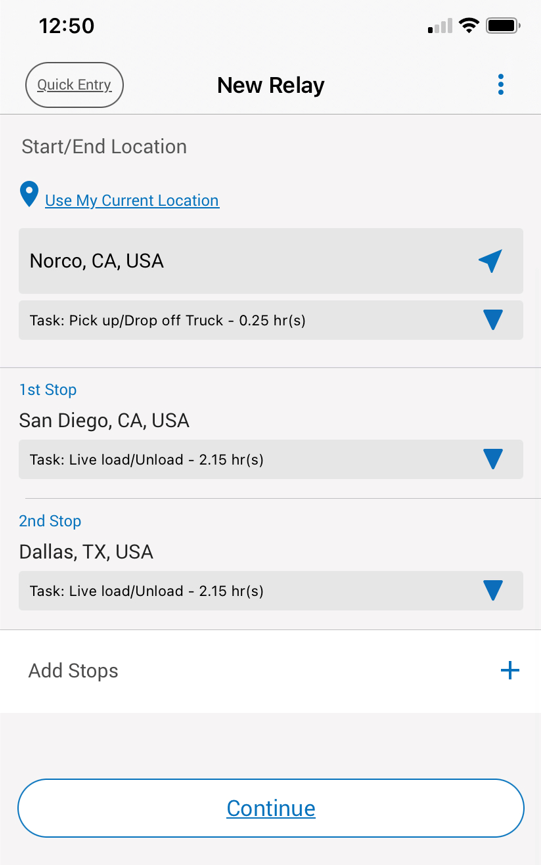
Example: A carrier knows that they are going to be looking to book a load from San Diego, CA to Dallas, TX but they do not know exactly what addresses the driver will be going to. The additional stops would look like this for this situation:
If you do not know exactly where the load will be delivering, you will at the very least need to input the city of where the load will be delivering. Doing it this way lets drivers know the general lane the order will be, and once you confirm a load and get the correct addresses, you can go into your order and update them.
Example: A carrier knows that they are going to be looking to book a load from San Diego, CA to Dallas, TX but they do not know exactly what addresses the driver will be going to. The additional stops would look like this for this situation:
Once the carrier finalizes the load and knows the exact addresses, they would then edit the order to reflect the correct addresses.
Using Placeholder Cities for the Backhaul
If you know that there is going to be a backhaul on one of your OTR orders, using placeholder cities for the backhaul lets the driver know that: a) there will be a backhaul, and b) where the backhaul is expected to be picked up and delivered.
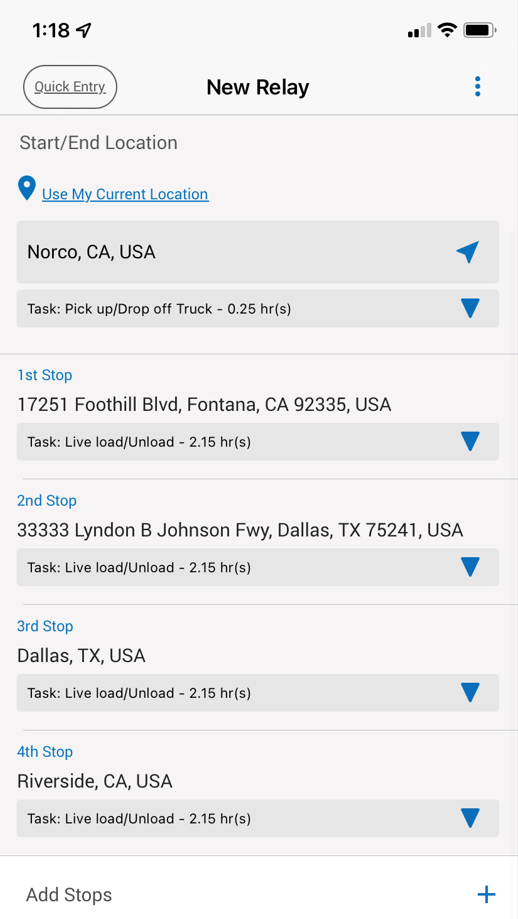
Example: A carrier already has a load booked from Fontana, CA to Dallas, TX, but they do not have a backhaul load booked yet. The carrier knows that the backhaul will most likely pick up in Dallas, TX and deliver somewhere in Riverside, CA. The carrier in this case would want to put placeholder addresses in additional stops 3 & 4 so drivers are aware that there will be a backhaul after the initial load is delivered. The additional stops for this order would look like this:
If you know that there is going to be a backhaul on one of your OTR orders, using placeholder cities for the backhaul lets the driver know that: a) there will be a backhaul, and b) where the backhaul is expected to be picked up and delivered.
Example: A carrier already has a load booked from Fontana, CA to Dallas, TX, but they do not have a backhaul load booked yet. The carrier knows that the backhaul will most likely pick up in Dallas, TX and deliver somewhere in Riverside, CA. The carrier in this case would want to put placeholder addresses in additional stops 3 & 4 so drivers are aware that there will be a backhaul after the initial load is delivered. The additional stops for this order would look like this:
Once the backhaul is confirmed and the carrier gets the actual addresses, they would then want to let the driver know and edit the order accordingly.
Related Articles
When will I be charged for the orders I place?
For orders you place, you are charged once the driver has completed the route and marks the Relay as completed on their end.Increasing Your Revenue with OTR Runs
If you do lots of OTR runs, the power of the Relay Network can help you increase your revenue. Since you are using the extensive driver pool that the Network has to offer, you are no longer limited to the hours that a single driver can do for you in ...Scheduling Multiple Orders at Once
To schedule runs for multiple days: 1) Choose the Exact Time/Date option, and select the days that you want to create individual orders for. The screenshot below gives an example of creating 3 different orders, each starting on Monday for the week. ...Cancelling or Rescheduling Orders
Cancelling Orders and Rescheduling Orders When you press the Cancel Order button, three options will come up: Ask Driver to Reschedule: This option sends a message to the driver currently assigned to your order seeing if they are available for a ...Pre-booking a Driver Before You Book a Load
If you want to ensure you have a driver before you book a load, you can do the following: 1) Enter the time and place you want the driver to show up. You can select the timeframe option for start time to select a range of days the driver can arrive. ...