Cancelling or Rescheduling Orders
Cancelling Orders and Rescheduling Orders
When you press the Cancel Order button, three options will come up:
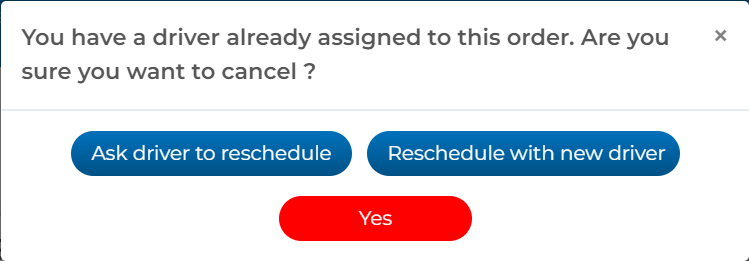
Ask Driver to Reschedule: This option sends a message to the driver currently assigned to your order seeing if they are available for a different starting date and time. Pressing this button will populate a pre-written message that you can instantly send that has the new date and time already in it. You can also write your own custom message in if you want.
Reschedule with New Driver: This option removes the driver currently assigned to your order and notifies all of the available drivers in your area that you order is now available to accept again. You will typically use this option if the starting date and time had to change, and your current driver was not able to accommodate that change. Rescheduling your order with a different driver does not penalize the current driver that is assigned to the order.
Yes: This option fully cancels the order. This option should only be used in situations where there are no other alternatives for a different start date/time. Orders that are cancelled after the driver has marked themselves as on their way to your truck are charged a cancellation fee.
How to Ask Driver to Reschedule
If you are made aware of any changes that will affect the Relay driver and the run they are doing for you, you should edit your order accordingly as soon as you can. Remember to first speak with the driver and communicate any changes with them before making any changes to the order.
1) On your Home Screen, select My Current Relays
2) Click Track Order on the Relay order you need to adjust
3) Press Cancel Order
4) Select Ask Driver to Reschedule
5) Input the new date and time you'd like to ask the driver about and press Reschedule
6) You will now see the pre-written message in the text box. If you wish to send the message as is, press the Send button. If you want to make any changes to the message, you can write or delete anything in the text box and then hit the Send button.
The message is now sent to the driver. Keep an eye out on the driver's response so you know whether or not you'll need to seek a new driver.
If the driver confirms they can accommodate the change, you can edit the order. Click here to see how you can easily edit your current orders.
If the driver cannot accommodate the change, no worries! It's simple to reschedule with a new driver. See below on how to do that.
How to Reschedule with a New Driver
To reschedule your order with a new driver, follow these simple steps:
1) On your Home Screen, select My Current Relays
2) Click Track Order on the Relay order you need to adjust
3) Press Cancel Order
4) Select Reschedule with New Driver
5) Enter the new start date and time for the order and press Reschedule
Your order is now available for all of the drivers in your area to view and accept again.
Related Articles
Overview on Editing Orders
What Order Details Can Be Edited After the Order is Placed? If the driver has not marked themselves as on their way to your yard, you can edit any section or any detail of the order after you have placed it. IMPORTANT: It is essential that you reach ...Editing Your Order (Mobile)
Editing your order from your phone is easy! To edit one of your Relay orders: 1) Simply open your Relay On Demand app and click My Orders > Scheduled. 2) Now that you can see your scheduled orders, select the order that you would like ...Editing Your Order (Computer)
Editing your order from your computer is easy! To edit one of your Relay orders, simply open your Carrier Portal and click Current Orders > Scheduled. Now that you can see your scheduled orders, you can press the 'Edit Order' button to the right of ...What happens if I cancel a run?
There is no penalty for cancelling orders before the driver has marked that they are on their way to the start location. If you cancel a run for any reason after the driver has marked that they are on their way to the start location, you will be ...Pre-booking a Driver Before You Book a Load
If you want to ensure you have a driver before you book a load, you can do the following: 1) Enter the time and place you want the driver to show up. You can select the timeframe option for start time to select a range of days the driver can arrive. ...